 Wa Web
Backing up chats on WhatsApp before using WA Web is crucial for preserving your conversations and ensuring you don’t lose any important information. In this article, we will guide you on how to back up your WhatsApp chats effectively, so you can use WA Web with confidence. We will explore various methods and tips to keep your chats safe before you start your web experience.
Using Google Drive for Backup
Sign into Google Drive
Ensure you are signed in: Make sure you are logged into the Google account you would like to use for the backup.
Open WhatsApp: Start the app on your phone.
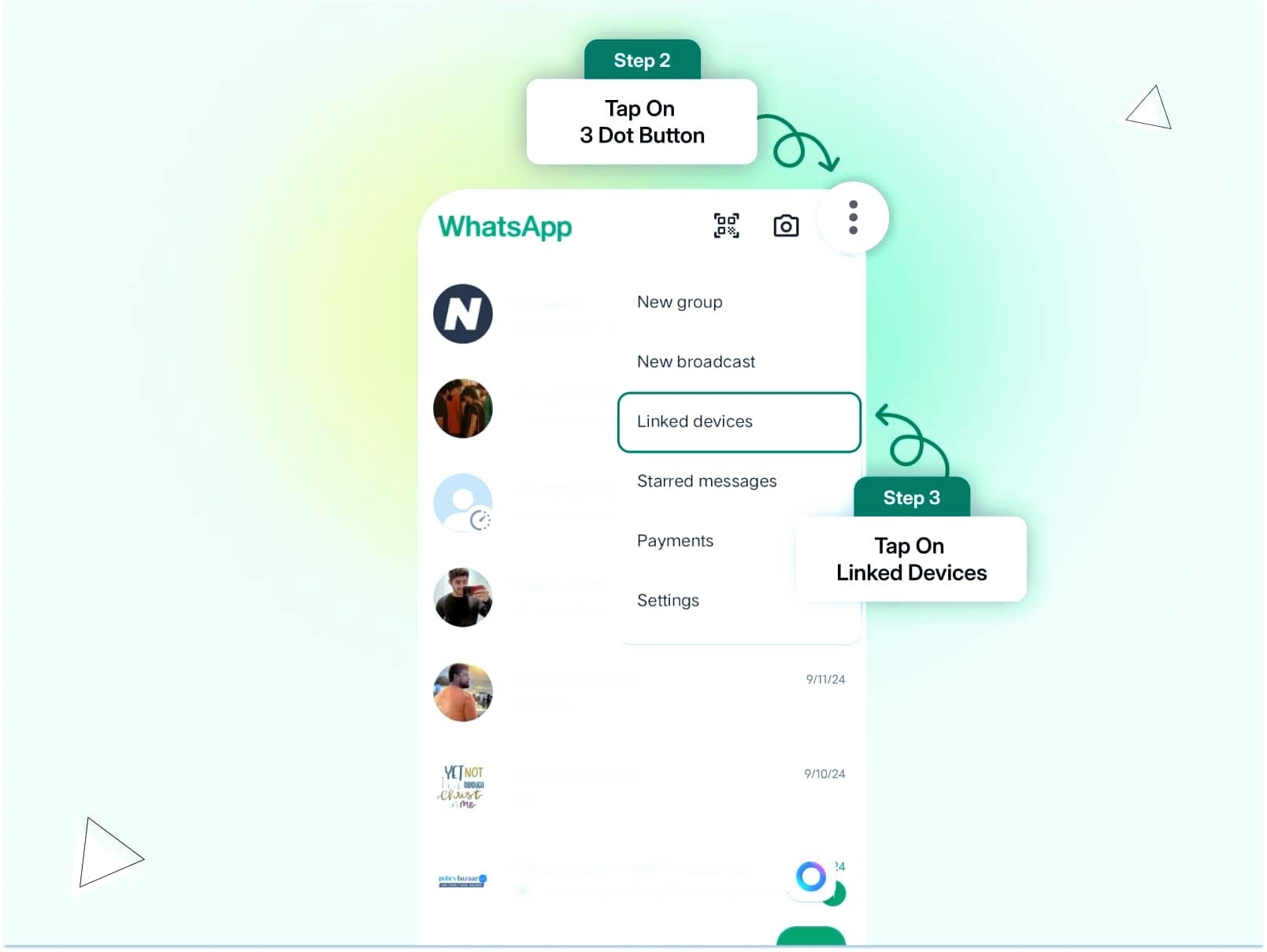
Navigate to Settings: Tap the three dots in the top right corner, select “Settings.”
Access Chats: Click on “Chats” and then “Chat backup.”
Backup Your Chats
Initiate the backup process: Follow these actions to back up your WhatsApp data.
Select Backup: Tap on “Back Up” to start the process.
Choose Frequency: Select how often you want your chats backed up, whether daily, weekly, or monthly.
Confirm Backup: Wait for the backup to complete successfully; you will see a confirmation message.
Local Backup on Your Device
Manual Backup Procedure
Locate your WhatsApp database files: This allows you to create a backup without relying on the cloud.
Connect Device to Computer: Use a USB cable to connect your phone to your computer.
Access WhatsApp files: Open the device storage and navigate to the WhatsApp folder.
Copy Database: Look for the “Databases” folder and copy the files to your computer.
Restore From Local Backup
Know how to restore backups quickly: This can be useful if you switch devices or reinstall WhatsApp.
Delete WhatsApp: Uninstall the app from your phone.
Reinstall WhatsApp: Go to the app store and install the app again.
Access Local Backup: Follow the prompts to restore from the local backup you previously saved.
Backup Chats Using Email
Emailing the Chat
Export chats via email: This is an excellent way to keep a record of important conversations.
Open the Chat: Navigate to the specific conversation you want to back up.
Access Chat Options: Tap on the three dots in the top right corner, then select “More” and choose “Export chat.”
Select Email Provider: Choose your email app and send the conversation to yourself.
Saving Chat History
Ensure you retain the email: This allows for easy access in the future.
Check Email Sent Folder: Verify the chat was sent correctly to your email.
Access Email Later: Retrieve the chats from your inbox whenever needed.
Download Attachments: If you included media, make sure to download the attachments for complete records.
Using Third-Party Apps for Backup
Explore Reliable Third-Party Apps
Research backup solutions: Many apps are available to help you back up your WhatsApp data securely.
Choose a Trusted App: Look for well-reviewed apps like “Backuptrans” or “Dr.Fone.”
Download and Install: Follow the instructions to install the app on your device.
Run Backup Process: Typically, these apps provide a user-friendly interface to back up your WhatsApp data.
Restore From Third-Party Backup
Know how to revert backups: Using a trusted app can simplify the restore process.
Open Third-Party App: Launch the backup app you’ve chosen.
Select Restore Option: Choose the option for restoring WhatsApp chats from your previous backup.
Complete the Restoration: Follow the prompts to restore your chats seamlessly.
Cloud Services for Backup
Choosing a Cloud Storage Solution
Invest in reliable cloud services: Services like Dropbox or iCloud can be great alternatives for backing up data.
Create an Account: If you don’t already have one, set up an account with the cloud service.
Upload WhatsApp Chats: Using a file manager, upload your WhatsApp backup files to the cloud.
Access Files Anytime: With cloud storage, you can retrieve your backups from any device.
Syncing for Automatic Backup
Enable sync settings: This allows your files to be backed up automatically without manual intervention.
Access Cloud Settings: Open your cloud service app and navigate to the sync settings.
Choose WhatsApp Backup Folder: Select the folder where your WhatsApp backups are stored.
Confirm Automatic Sync: Make sure automatic sync is enabled for ongoing backups.
Common Questions About WhatsApp Backup
Why should I back up my chats before using WA Web?
It’s essential to back up chats to ensure that you do not lose any important information or conversations while using WA Web, especially if technical issues occur.
How often should I back up my WhatsApp chats?
It is advised to back up your chats regularly, depending on the frequency of your conversations. Daily or weekly backups can help maintain up-to-date records.
Can I recover accidentally deleted WhatsApp chats?
Yes, if you have a backup saved, you can restore your deleted chats from the recent backup if the backup is not older than the deletion date.
In conclusion, backing up your WhatsApp chats before diving into WA Web is a straightforward yet crucial process. It helps safeguard your conversations against any unexpected mishaps as you transition to using WhatsApp on a web platform. Choose a method that fits your needs best from Google Drive, local backups, emailing conversations, third-party applications, or cloud storage solutions. Each approach ensures your important conversations are preserved, giving you peace of mind while utilizing WA Web.
Make sure to regularly back up your WhatsApp chats using Google Drive or manually, so you can seamlessly transition to WA Web without losing any important conversations.
Google Drive Backup
Easily back up your chats using Google Drive for secure storage.
Local Backup
Create a manual backup on your device to access chats anytime.
Email Chats
Send your chat history via email for easy access and safekeeping.
Third-Party Apps
Utilize reliable apps to enhance your backup process efficiently.
Cloud Sync
Automatically sync backups to cloud services for seamless access.
Common Questions
Find answers to frequent backup queries to improve your experience.







