 Wa Web
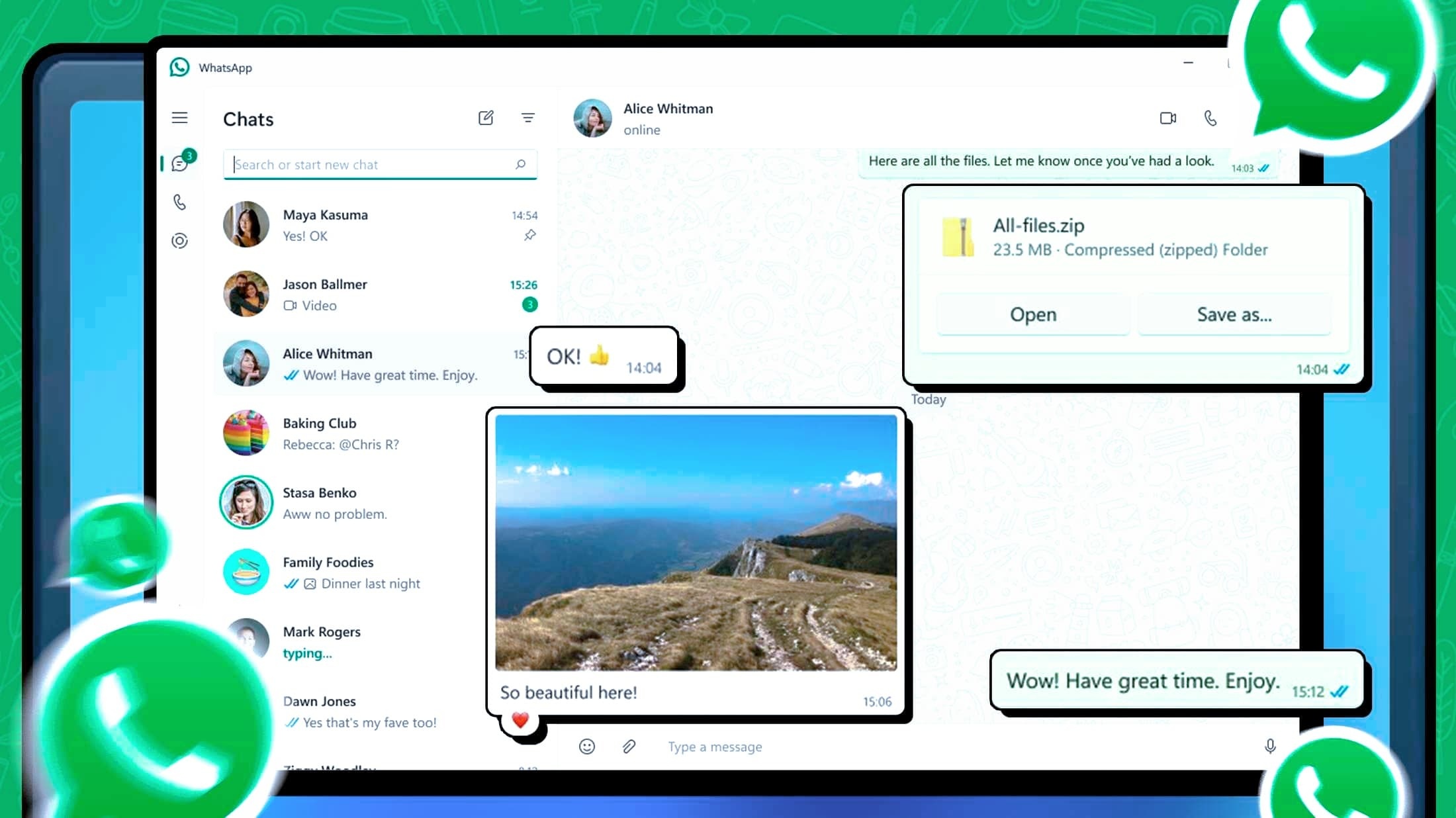
Adding WA web to your desktop is a practical solution for those who want quick access to their WhatsApp messages and enjoy a more streamlined communication experience. It eliminates the need to grab your phone each time you receive a message and allows you to interact with your contacts directly from your desktop. This article will explore multiple ways to achieve this, ensuring a convenient method tailored to your technical comfort level. Below are various options to add WA web to your desktop easily.

Use a Browser Shortcut
Create a Shortcut in Chrome
Navigate to WA Web: Open Google Chrome and go to the WhatsApp Web site at web.whatsapp.com. Here, you will see a QR code that you’ll use to log in with your mobile WhatsApp app.
Access Menu Options: Click on the three vertical dots in the upper right corner of the Chrome window. This opens the menu options.
Select More Tools: From the dropdown, hover over “More tools.” In the submenu that appears, click on “Create shortcut.” This will open a window prompting you to name the shortcut.
Name and Open the Shortcut
Choose a Name: Enter a simple and easy-to-remember name for the shortcut, such as “WhatsApp Web.”
Check Open as Window: Before clicking “Create,” check the box that says “Open as window.” This setting ensures that WA Web opens in its window without the browser interface.
Click Create: Finally, press “Create,” and you will now have a WhatsApp Web shortcut on your desktop that opens in its window, making for a seamless experience.
Use Windows 10/11 Apps
Use Microsoft Edge
Launch Microsoft Edge: Open your Microsoft Edge browser and navigate to web.whatsapp.com. A QR code will appear, just as it does in Chrome.
Access Edge Options: Click on the three horizontal dots located in the top right corner of the browser to access the menu.
Select Apps and Install: In the dropdown, hover over “Apps,” and select “Install this site as an app.” This option will allow you to install WA Web as a standalone application on your desktop.
Launch the App
Name the App: You will be prompted to name the app. You can keep the name as “WhatsApp Web” or modify it to fit your preference.
Open from Start Menu: After installation, you can find the WA Web app in your Start Menu and pin it to the taskbar for even quicker access.
Enjoy the Experience: Now you have a dedicated app that opens WA Web directly, enhancing your productivity and allowing seamless communication.
Use a Third-party Application
Download a Dedicated WA Web Client
Research Reliable Apps: Search for reputable applications designed to run WhatsApp Web, such as “Franz” or “Rambox.” These apps support multiple messaging platforms, making them versatile.
Install the Application: Download the chosen app from their official website. Follow the on-screen instructions to complete the installation on your desktop.
Configure the Application
Open the Client: Once installed, launch the application, and you’ll be prompted to set up WA Web.
Scan the QR Code: Open your WA Web on your mobile device and scan the QR code displayed on the client application screen.
Start Using WhatsApp: After scanning, your WA Web will sync with the app, allowing access to your chats from the dedicated interface of the third-party application.
Use Linux Desktop Environments
Utilize Electron Framework Apps
Download an Electron-Based App: If you’re using Linux, you can find applications designed with Electron, such as “WhatsApp Desktop” which are tailored for your OS.
Install via Terminal: Use your package manager or download the app’s .deb or .rpm package for easy installation. Follow the terminal commands for your specific distribution.
Set Up and Start With WhatsApp
Launch the App: After installation, search for the WhatsApp Desktop app in your application menu and open it.
Scan the QR Code: Like other methods, open WA Web on your phone and scan the QR code displayed on your Linux desktop application.
Enjoy Full Features: Now you can chat seamlessly from your Linux desktop, fully integrated with WA Web functionalities.
Add WA Web to MacOS
Use Safari to Create an App
Open Safari and Navigate: Launch Safari and visit web.whatsapp.com. Ensure you have your phone ready to scan the QR code.
Select File and Export: Click on “File” in the top menu bar and then choose “Export as PDF.” This will help you create a link.
Save the PDF on the Desktop
Name the PDF: Save the PDF document as “WhatsApp Web” on your desktop, ensuring easy access.
Open the Link: Whenever you want to use WA Web, simply open the PDF and click the link to navigate to WA Web.
Common Questions about Adding WA Web
Can I use WA Web on multiple devices?
Yes, you can use WA Web on multiple devices. However, remember that the mobile app must be connected to the internet for WA Web to function properly.
What should I do if WA Web won’t load?
If WA Web isn’t loading, check your internet connection, ensuring both the mobile device and the computer are online. Clearing the browser cache can also help resolve loading issues.
| Method | Steps | Platform | Advantages | Notes |
|---|---|---|---|---|
| Browser Shortcut | Create shortcut in Chrome or Edge | Windows, Mac | Quick access, user-friendly | Must scan QR code |
| Standalone App | Install from Microsoft Store or Mac App Store | Windows, Mac | Dedicated experience | Sync required with mobile app |
| Third-party Client | Download and set up client | Windows, Mac, Linux | Multiple integrations | Check for security and updates |
| Linux Applications | Use Electron-based apps | Linux | Optimized for Linux interfaces | Installation may vary by distribution |
| Safari Shortcut | Create a PDF with link | Mac | Simple and effective | Less direct than other methods |
Is my data safe when using WA Web?
WA Web uses end-to-end encryption for your messages, keeping your data secure as long as you are using it properly. Avoid accessing WA Web on public or insecure networks for better data safety.
Adding WA web to your desktop is a practical move that enhances your messaging experience. With several simple methods available, each user can find their preferred way to stay connected efficiently. Enjoy these various approaches to improve your workflow and maintain seamless communication!
To enhance your experience, create a desktop shortcut for WA Web by using your browser’s menu options, allowing instant access to your WhatsApp messages without searching for them every time.
Quick Access
Easily access WhatsApp messages without needing your phone.
Standalone App
Use WA Web as a dedicated application for a smoother experience.
Cross-Platform
Install WA Web on any OS, including Windows, Mac, and Linux.
Secure Messaging
Enjoy encrypted conversations while using WA Web on your desktop.
Mobile Sync
Stay connected with your mobile WhatsApp account seamlessly.
User-Friendly
Simple installation process suited for all skill levels.







