 Wa Web
Managing work chats and personal chats on WhatsApp Web is crucial for anyone trying to maintain a balanced online communication environment. WhatsApp Web provides a powerful platform to effectively differentiate between professional and personal conversations. In this article, we will explore five comprehensive approaches that can help you streamline your interaction on this platform, ensuring that you remain organized and efficient.
User Profiles and Labels
Create Separate User Profiles
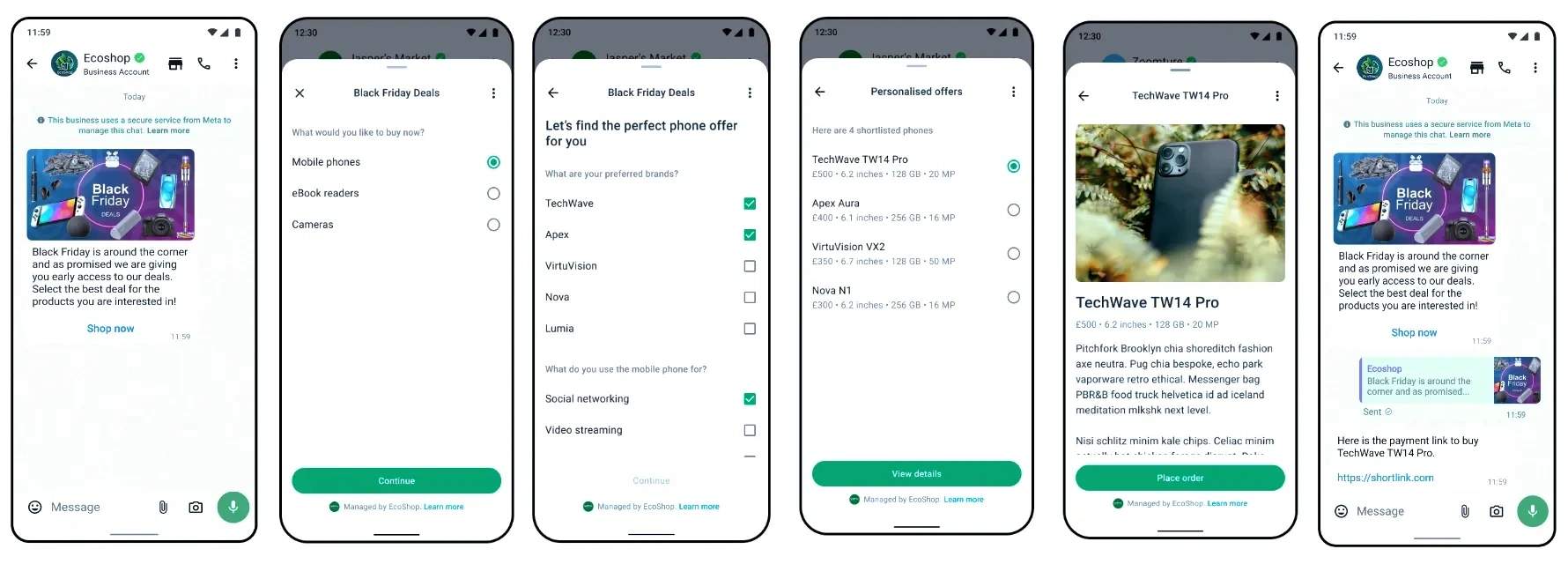
Separate accounts: To keep your work and personal conversations distinct, consider using different profiles in WhatsApp. You can set up a work-specific number that allows you to use WhatsApp Web exclusively for professional interaction. This creates a clear boundary between your work and personal life.
Make it efficient: Make use of your work phone number for creating your WhatsApp account. Installing an app like WhatsApp Business can empower you with tools that suit your professional communication style much better than the standard version.
Use Labels for Chats
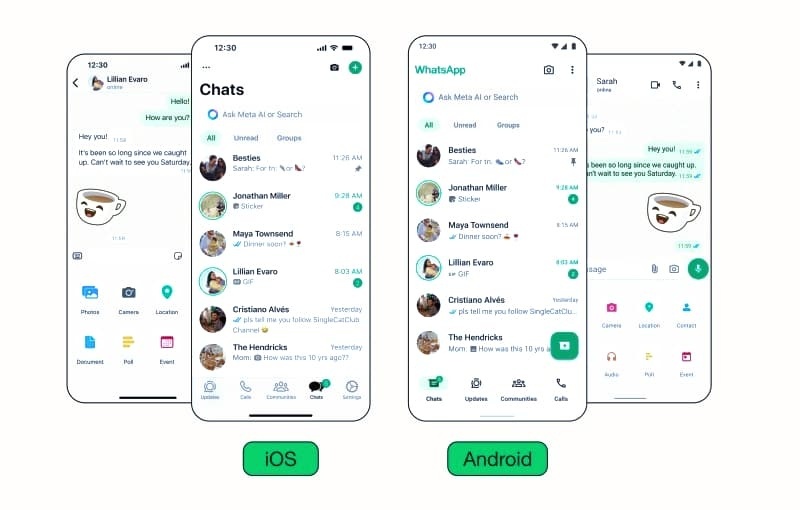
Organize effectively: WhatsApp allows you to label chats for quick identification. This way, you can easily navigate through your work and personal conversations.
Interactive labeling: When you create a chat label, specify themes like ‘Work,’ ‘Project X,’ or ‘Family.’ This will make your chats more accessible and will assist in quickly identifying the context of each chat.
Using Archive Features
Archive Work Chats
Quickly access: Archived chats allow you to hide conversations that are not immediately relevant but may need to be referenced later. Simply click the chat and select the archive option. Organized interface: Archiving helps maintain a clean chat interface by minimizing distractions from ongoing conversations. Your work chats can be neatly organized without cluttering your main chat list.
Unarchive when needed
Reopen with ease: Whenever you need to reference an archived conversation, you can easily unarchive it. Head to the archived section, find your chat, and select the unarchive option to bring it back to your main chat list.
Flexible management: This flexibility lets you customize your work and personal messaging landscape as per your current needs, making task management easier.
Utilizing Notifications
Customize Notification Settings
Personalize notifications: Configuring notifications for different chats can drastically improve your productivity. You can set custom tones for your work chats to distinguish them from personal chats.
Stay alert: Modify settings so that work notifications are more visible and attention-grabbing. This is particularly useful for urgent work messages, ensuring they do not get lost among personal notifications.
Mute Personal Chats
Reduce distractions: Dismissing notifications for personal chats during work hours can keep you focused. Use the mute option for specific chats that are not work-related, particularly during critical working hours.
Intelligent focus: With fewer distractions, you can channel your energy into completing tasks and maintaining engagement during work periods.
Group Management
Create Distinct Work Groups
Segregate conversations: Establish separate groups for work-related conversations. You can create a professional group for team discussions, ensuring that important work information is isolated from personal chats.
Encourage collaboration: Having a dedicated team group enhances collaboration, streamlines information flow, and reduces misunderstandings which may arise in a mixed environment.
Use Personal Groups Wisely
Maintain personal boundaries: Just as work groups are important, having personal group chats can help you maintain social interactions without mixing them with work chats.
Flexible participation: Participate actively in these groups outside work hours to retain healthy relationships and maintain separation from your professional life.
Integration with Other Tools
Link with Task Management Software
Boost productivity: Integrating WhatsApp Web with task management tools such as Trello or Asana can elevate your efficiency. This allows easy syncing of tasks and conversations in one place.
Streamline communication: Using integrations allows notifications from these tools to appear alongside your WhatsApp chats. It keeps everything organized and makes it easier to follow up on tasks.
Use Third-Party Apps
Advanced features: Consider employing third-party apps that offer advanced features for WhatsApp Web. Tools like Zapier allow you to automate workflows between WhatsApp and other applications you frequently use.
Custom workflows: Create personalized workflows that help you manage your tasks more effectively, combining both personal and work chat functionalities seamlessly.
WhatsApp Web FAQ
How can I use WhatsApp Web concurrently with the mobile app?
WhatsApp Web mirrors your mobile app, enabling seamless use on multiple platforms.
Can I switch my WhatsApp profile between work and personal accounts?
Yes, by using different phone numbers for each, you can easily switch profiles.
Are archived chats accessible on WhatsApp Web?
Yes, archived chats can be accessed on WhatsApp Web through the archive section.
How do I ensure my work chats are private?
Utilize your phone’s security settings, like password protection and biometric lock, to secure WhatsApp.
What notifications can I customize on WhatsApp Web?
Consider creating a dedicated WhatsApp account for work purposes to separate professional chats from personal ones. This way, you can manage your communications effectively and maintain a healthy work-life balance.
You can customize tones, vibrations, and pop-up notifications for each individual chat.
How do I mute a group chat?
| Approach | Method | Description | Benefits | Examples |
|---|---|---|---|---|
| User Profiles | Create Separate User Profiles | Set up different accounts for work and personal chats. | Improves organization | Work number for business, personal number for friends |
| Chat Management | Use Labels for Chats | Add labels to easily identify chat types. | Simplifies navigation | Labels like ‘Work’ and ‘Family’ |
| Archiving | Archive Work Chats | Hide non-active work conversations. | Reduces clutter | Archive completed project groups |
| Notifications | Customize Notification Settings | Set different alerts for work and personal chats. | Enhances focus | Distinct tones for work messages |
| Group Management | Create Distinct Work Groups | Establish separate groups for work-related communication. | Facilitates collaboration | Team projects, departmental discussions |
Open the group chat, click on group info, and select ‘Mute notifications’ option to mute specific groups.
Can I delete messages for everyone on WhatsApp Web?
Yes, as long as the messages are recent, you can delete them for everyone.
What integration tools are available for WhatsApp Web?
Popular integration tools include Zapier, Integromat, and others that fit your needs.
Are there work-specific emojis or stickers?
While there are no specific work emojis, you can use emojis that enhance your messages’ professional tone.
How do I manage my status setting on WhatsApp Web?
You can set your status by clicking on your profile and updating your current status message.
In conclusion, managing work and personal chats on WhatsApp Web can be achieved through effective use of user profiles, notifications, chat management, and integrations. By following these methods, you can customize your messaging strategy to optimize communication, elevating both your productivity and personal interactions.